How to create Invoice cum Bill of Supply in JioGST Bill Lite

Creating Invoice cum Bill of Supply in JioGST Bill Lite

To create Invoice cum Bill of Supply tap on 'Documents' tab in the Home page and select 'Generate Document' option


You will be taken to the Generate Document screen. On this page fill the below mentioned details:
1. Document type: 
Select the type of document you want to create from the drop-down. Using JioGST Bill Lite you can create Invoices, Bill of Supply & Invoice cum Bill of Supply.
For creating Invoice cum Bill of Supply select 'Invoice cum Bill of Supply' option.

2. Select GSTIN:
Select GSTIN from the drop down against which you want to create the Invoice. Dropdown will have the list of all the added GSTIN's from your account.

3. Document date:
Select the date against which you want to create the Invoice cum Bill of Supply from the calendar.

4. Document for:
In JioGST Bill Lite, Invoice cum Bill of Supply can be created for Goods/Services. Select one of the option.

 5. Goods/Services sold through Ecommerce operator:
If the goods/services are sold through e-commerce operator select this option. You will also have to enter the GSTIN of the E-commerce operator.

6. Reverse Charge applicable:
If the document attracts reverse charge select this option.

7. Document Period:
If the Invoice cum Bill of Supply is created for Services than you need to fill the time period for which the service was delivered. If it is for Goods, you wont see this option.

8. Customer Name/ Mobile No.
Enter the first few alphabets/digits of the Name/Mobile No. of the customer against which you want to create this Invoice cum Bill of Supply.
Please ensure you have added Customer in the customer master. If no customer is added in the customer master you will first have to add a customer and then create Invoice cum Bill of Supply.

To add a customer in the Customer Master read blog:

9. Make Shipping Address same as Billing address
By default this option will be checked, in case your Shipping address is not same as Billing Address uncheck the check box.
A list of the below mentioned fields will appear on screen:

  • Ship to Customer Name: Enter the name of the customer to whom the Goods/Services will be shipped
  • Ship to Address: Enter the address where the Goods/Services needs to be shipped
  • Ship to Pin code: Enter the Pin-code for the above mentioned address
  • Ship to City, Place of Supply: Both these fields will be auto-populated based on the entered pin-code in the above field
10. Bill Method:
Select the Billing method from the drop-down. Billing method can be either 'Quantity based' or 'Lump sum' 

11. Add Goods:
Tap on the add icon/Add Goods. The below mentioned fields will appear on screen.
To create Invoice cum Bill of Supply for Goods/Services, atleast one Good/Service must be added in the Goods/Service master catalogue. 

 To add Goods in the Goods Catalogue master read blog:
https://jiogstbilllite.blogspot.com/2018/03/goods-Master-jioGST-Bill-Lite-HSN-SAC-code-UOM-tax-rate.html

To add Services in the Services catalogue master read blog:
https://jiogstbilllite.blogspot.com/2018/03/Services-Master-jioGST-Bill-Lite-HSN-SAC-code-UOM-tax-rate.html
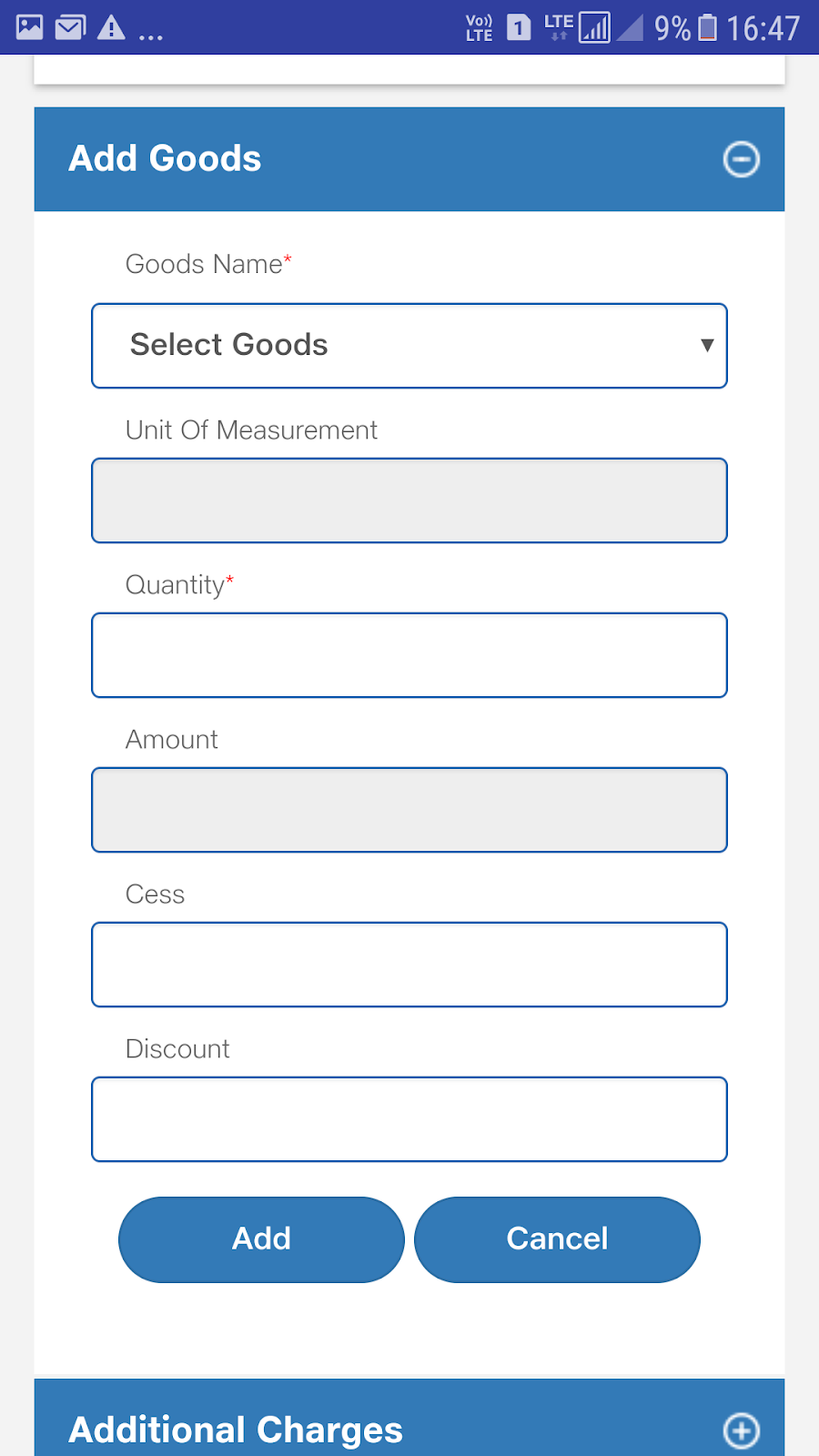
  • Goods Name: Select the Goods form the drop-down. You will get the list of all the added Goods from the Goods master here.
  • Unit of Measurement: This will be auto-populated form the Goods Master based on the Goods you select.
  • Quantity: Enter the quantity you want to sell for the selected goods.
  • Amount: This field will be auto-calculated based on the values you provide in the above 'Quantity' field and the 'Goods rate' mentioned in the Goods master for this good/product
  • Cess: Enter the cess against this product
  • Discount: Discount provided if any against this product can be entered in this field.
    After filling the above details tap on 'Add' button. The added good will be seen on screen, you can also Edit or Delete this Good by clicking on respective icons besides it.
    For adding Multiple Goods within this Invoice cum Bill of Supply tap on 'Add' button.
12. Additional Charges: 
Additional charges if any can be included against this Invoice cum Bill of Supply by tapping on Additional Charges or the add icon.
Select the additonal charge from the drop down. A list of all the added additional charges from the Additional Charges master will be displayed.

If no additional charge is added in the master than you will first have to add one in the Additional Charge Master.

To add additional Charges in the Additional Charge master read this post:

Amount will be auto-populated from the master. You can even edit the amount value.
Once the above details are filled, tap on Add button. You can also add multiple additional charges in a single Invoice cum Bill of Supply. All the added additional charges will appear on screen.

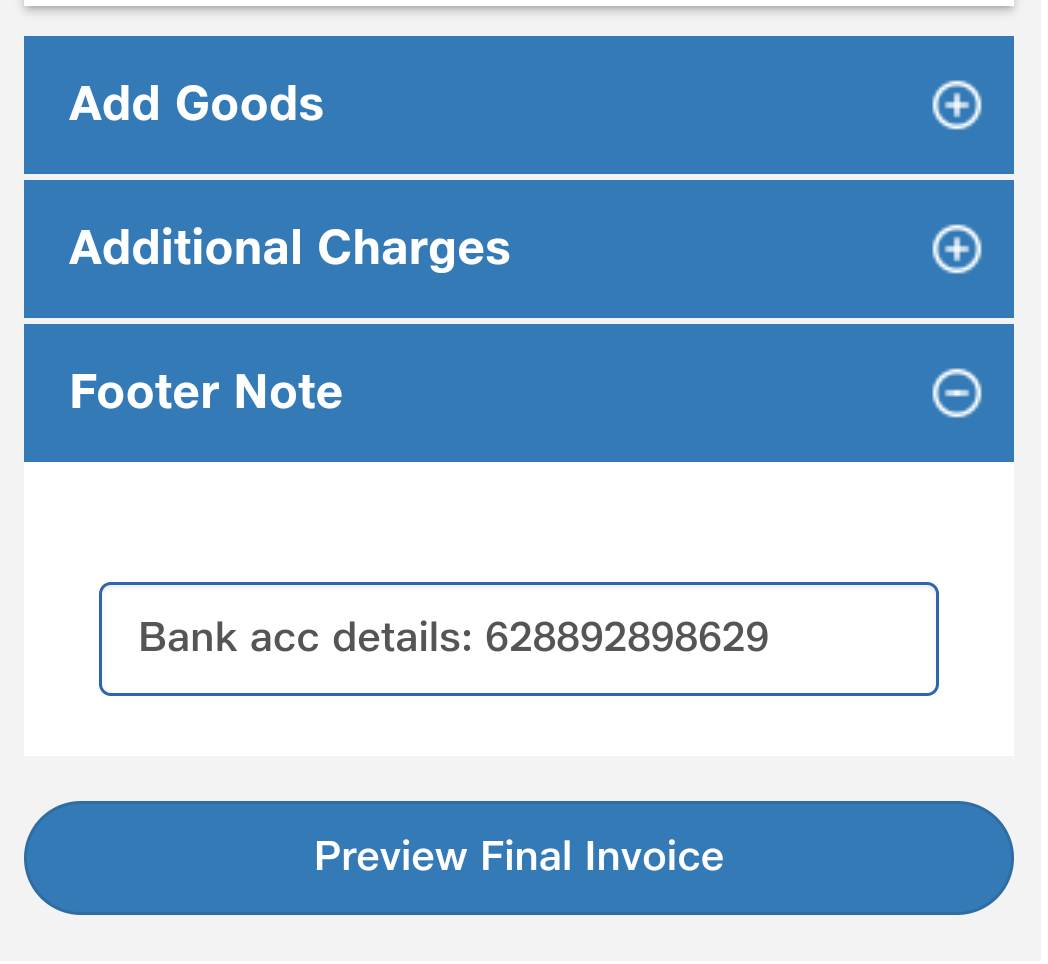
13. Footer Note:
Footer Note is field where you can mention other details like Bank Account Number, Mobile No for your customers.

Once all the above details are filled, you can tap on 'Preview Final Invoice cum Bill of Supply' button to preview it before creation.

You will be taken to the 'Preview' screen.
On this page the final Invoice cum Bill of Supply will be displayed. All the tax rates and calculation will be done automatically.


Once verified you can create the Invoice cum Bill of Supply by tapping on 'Send Invoice cum Bill of Supply' button at the bottom of the page. In case you want to make some changes tap on 'Edit' button
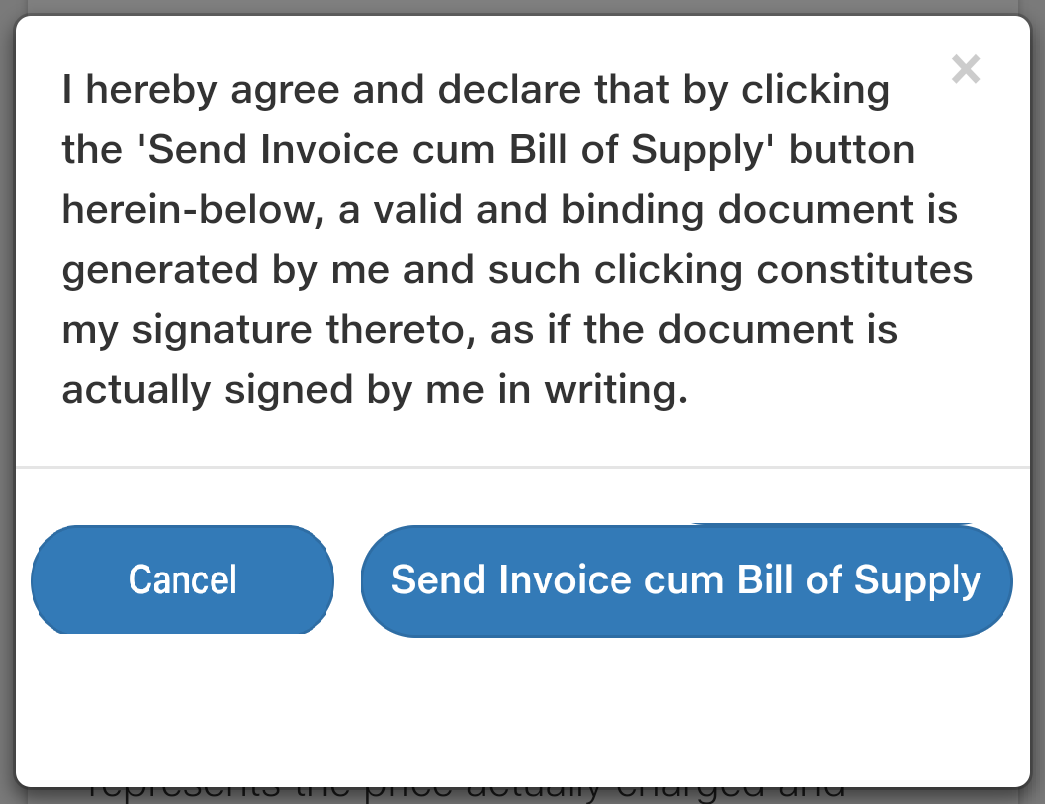
A pop-up of Terms & Conditions would appear on screen. On tapping 'Send Bill of Supply' it will be created and an email with the pdf of Invoice cum Bill of Supply will be sent to the customer as well as to your email id.


You will now see a pop-up displaying the Invoice cum Bill of Supply Id.
The Invoice cum Bill of Supply has been created successfully. Click on 'OK' button

You can check the Invoice cum Bill of Supply you just created in the 'Document History' option under 'Documents Management' tab. 
Document Number of all the Invoices/Bill of Supply/Invoice cum Bill of Supply generated will be displayed on this screen.


How to Download JioGST Bill Lite?

Bill Lite is a software product built by JioGST

How to create Bill of Supply in JioGST Bill Lite

Creating Bill of Supply in JioGST Bill Lite

To create Bill of Supply tap on 'Documents' tab in the Home page and select 'Generate Document' option

You will be taken to the Generate Document screen. On this page fill the below mentioned details:

1. Document type: 
Select the type of document you want to create from the drop-down. Using JioGST Bill Lite you can create Invoices, Bill of Supply & Invoice cum Bill of Supply.
For creating Bill of Supply select 'Bill of Supply' option.


2. Select GSTIN:
Select GSTIN from the drop down against which you want to create the Invoice. Dropdown will have the list of all the added GSTIN's from your account.

3. Document date:
Select the date against which you want to create the Bill of Supply from the calendar.

4. Document for:
In JioGST Bill Lite, Bill of Supply can be created for Goods/Services. Select one of the option.

 5. Goods/Servcies sold through Ecommerce operator:
If the goods/services are sold through e-commerce operator select this option. You will also have to enter the GSTIN of the E-commerce operator.

6. Reverse Charge applicable:
If the document attracts reverse charge select this option.

7. Document Period:
If the Bill of Supply is created for Services than you need to fill the time period for which the service was delivered. If it is for Goods, you wont see this option.

8. Customer Name/ Mobile No.
Enter the first few alphabets/digits of the Name/Mobile No. of the customer against which you want to create this Bill of Supply.
Please ensure you have added Customer in the customer master. If no customer is added in the customer master you will first have to add a customer and than create Bill of Supply.

To add a customer in the Customer Master read blog:

9. Make Shipping Address same as Billing address
By default this option will be checked, in case your Shipping address is not same as Billing Address uncheck the check box.
A list of the below mentioned fields will appear on screen:
  • Ship to Customer Name:Enter the name of the customer to whom the Goods/Services will be shipped
  • Ship to Address: Enter the address where the Goods/Services needs to be shipped
  • Ship to Pin code: Enter the Pin-code for the above mentioned address
  • Ship to City, Place of Supply: Both these fields will be auto-populated based on the entered pin-code in the above field
10. Bill Method:
Select the Billing method from the drop-down. Billing method can be either ''Quantity based'' or ''Lumpsum''

 11. Add Goods:
Tap on the add icon/Add Goods. The below mentioned fields will appear on screen.
To create Bill of Supply for Goods/Services, atleast one Good/Service  must be added in the Goods/ Service master catalogue.  

To add Goods in the Goods catalogue master read this post:
https://jiogstbilllite.blogspot.com/2018/03/goods-Master-jioGST-Bill-Lite-HSN-SAC-code-UOM-tax-rate.html 
To add Services in the Service catalogue master read blog:
https://jiogstbilllite.blogspot.com/2018/03/Services-Master-jioGST-Bill-Lite-HSN-SAC-code-UOM-tax-rate.html
  • Goods Name: Select the Goods form the drop-down. You will get the list of all the added Goods from the Goods master here.
  • Unit of Measurement: This will be auto-populated form the Goods Master based on the Goods you select.
  • Quantity: Enter the quantity you want to sell for the selected goods.
  • Amount: This field will be auto-calculated based on the values you provide in the above "Quantity" field and the "Goods rate" mentioned in the Goods master for this good/product
  • Cess: Enter the cess against this product
  • Discount: Discount provided if any against this product can be entered in this field.

    After filling the above details tap on "Add" button. The added good will be seen on screen, you can also Edit or Delete this Good by clicking on respective icons besides it.
    For adding Multiple Goods within this Bill of Supply tap on "Add" button.
12. Additional Charges: 
Additional charges if any can be included against this Bill of Supply by tapping on Additional Charges or the add icon.
Select the additional charge from the drop down. A list of all the added additional charges from the Additional Charges master will be displayed.

If no additional charge is added in the master than you will first have to add one in the Additional Charge Master.

To add additional Charges in the Additional Charge master read this post:


Amount will be auto-populated from the master. You can even edit the amount value.
Once the above details are filled, tap on Add button. You can also add multiple additional charges in a single Bill of Supply. All the added additional charges will appear on screen.

13. Footer Note:
Footer Note is field where you can mention other details like Bank Account Number, Mobile No for your customers.
Once all the above details are filled, you can tap on ''Preview Final Bill of Supply'' button to preview the Bill of Supply before creation.

You will be taken to the ''Preview Bill of Supply'' screen.
On this page the final Bill of Supply will be displayed. All the tax rates and calculation will be done automatically.


Once verified you can create the Bill of Supply by tapping on ''Send Bill of Supply'' button at the bottom of the page. In case you want to make some changes tap on ''Edit'' button.


A pop-up of declaration would appear on screen. On tapping "Send Bill of Supply'' it will be created and an email with the pdf  of Bill of Supply will be sent to the customer as well as to your email id.

You will now see a pop-up displaying the Bill of Supply Id.

The Bill of Supply has been created successfully. Click on OK button

You can check the Bill of Supply you just created in the ''Document History'' option under ''Documents Management'' tab. 
Document Number of all the Invoices/Bill of Supply/Invoice cum Bill of Supply generated will be displayed on this screen.


How to Download JioGST Bill Lite?

Bill Lite is a software product built by JioGST


How to recover password if you have forgotten your password in JioGST Bill Lite

Recovering your forgotten password:

To recover your password, tap on ‘Forgot MPIN’ in the Login page.


You will be taken to the 'Recover Password' page. On this page enter the below mentioned details:

Mobile No. Enter the Mobile number. It should be the same number that was used for account creation in JioGST Bill Lite. 
Verify the Mobile No. by tapping on 'Verify Mobile No.' button.

An OTP will be sent on this number, enter the correct OTP and tap on 'Verify OTP' button.

On successful verification of your Mobile Number you will be allowed to set a new Password/MPIN for your account.
  • New MPIN: Enter a new MPIN
  • Confirm New MPIN: Re-enter the MPIN for confirmation
  • Enter Captcha: Enter the captcha as seen besides the field.
After filling all the details, tap on Save button. A pop- up will appear for confirming the password changed. Tap on 'OK' button
You will be taken to the Login page, now Login using your new credentials and resume using JioGST Bill Lite.

How to Download JioGST Bill Lite?

Bill Lite is a software product built by JioGST

How to change your Password (MPIN) for your JioGST Bill Lite account

Changing the MPIN (Password) for your JioGST Bill Lite account

To change MPIN (Password) tap on 'Change MPIN' option in the main menu.


You will be taken to the Change MPIN page. On this page fill the below mentioned details:
  • Old MPIN: Enter your old MPIN(password)
  • New MPIN: Enter new MPIN(Password). Your New MPIN should not be same as your Old MPIN
  • Confrim New MPIN: Re-enter your New MPIN for confirmation.
  • Enter Captcha: Enter the captcha as seen besides this field.

Once all the details are filled tap on 'Save' button. You will get a confirmation message that the Password is changed successfully, tap on 'OK' button.


You will be taken to the login screen to Login using your new credentials.

How to Download JioGST Bill Lite?

Bill Lite is a software product built by JioGST

How to create Invoice in JioGST Bill Lite

Creating Invoice in JioGST Bill Lite

To create Invoices tap on 'Documents' tab in the Home page and select 'Generate Document' option


You will be taken to the Generate Document screen. On this page fill the below mentioned details:


1. Document type: 
Select the type of document you want to create from the drop-down. Using JioGST Bill Lite you can create Invoices, Bill of Supply & Invoice cum Bill of Supply.
For creating Invoices select 'Invoice' option.


2. Select GSTIN:
Select GSTIN from the drop down against which you want to create the Invoice. Dropdown will have the list of all the added GSTIN's from your account.

3. Document date:
Select the date against which you want to create the Invoice from the calendar.

4. Document for:
In JioGST Bill Lite invoices can be created for Goods/Services. Select one of the option.

 5. Goods/Servcies sold through Ecommerce operator:
If the goods/services are sold through e-commerce operator select this option. You will also have to enter the GSTIN of the E-commerce operator.

6. Reverse Charge applicable:
If the Invoice attracts reverse charge select this option.

7. Document Period:
If the Invoice is created for Services than you need to fill the time period for which the service was delivered. If the Invoice is for Goods, you wont see this option.


8. Customer Name/ Mobile No.
Enter the first few alphabets/digits of the Name/Mobile No. of the customer against which you want to create this Invoice.
Please ensure you have added Customer in the customer master. If no customer is added in the customer master you will first have to add a customer and than create invoice.

To add a customer in the Customer Master read blog:

9. Make Shipping Address same as Billing address
By default this option will be checked, in case your Shipping address is not same as Billing Address uncheck the check box.
A list of the below mentioned fields will appear on screen:


  • Ship to Customer Name:Enter the name of the customer to whom the Goods/Services will be shipped
  • Ship to Address: Enter the address where the Goods/Services needs to be shipped
  • Ship to Pin code: Enter the Pin-code for the above mentioned address
  • Ship to City, Place of Supply: Both these fields will be auto-populated based on the entered pin-code in the above field
10. Bill Method:
Select the Billing method from the drop-down. Billing method can be either 'Quantity based' or 'Lump sum'

11. Add Goods:
Tap on the add icon/Add Goods. The below mentioned fields will appear on screen.
To create Invoice for Goods/Services, atleast one Good/Service  must be added in the Goods/ Service master catalogue. 


  • Goods Name: Select the Goods form the drop-down. You will get the list of all the added Goods from the Goods master here.
  • Unit of Measurement: This will be auto-populated form the Goods Master based on the Goods you select.
  • Quantity: Enter the quantity you want to sell for the selected goods.
  • Amount: This field will be auto-calculated based on the values you provide in the above 'Quantity' field and the 'Goods rate' mentioned in the Goods master for this good/product
  • Cess : Enter the cess against this product
  • Discount: Discount provided if any against this product can be entered in this field.
After filling the above details tap on 'Add' button. The added good will be seen on screen, you can also Edit or Delete this Good by clicking on respective icons besides it.
For adding Multiple Goods within this invoice tap on 'Add' button.


12. Additional Charges: 
Additional charges if any can be included against this invoice by tapping on Additional Charges or the add icon.
Select the additional charge from the drop down. A list of all the added additional charges from the Additional Charges master will be displayed.

If no additional charge is added in the master than you will first have to add one in the Additional Charge Master.

To add additional Charges in the Additional Charge master read this post:


Amount will be auto-populated from the master. You can even edit the amount value.
Once the above details are filled, tap on Add button. You can also add multiple additional charges in a single invoice. All the added additional charges will appear on screen.

13. Footer Note:
Footer Note is field where you can mention other details like Bank Account Number, Mobile No for your customers.


Once all the above details are filled, you can tap on 'Preview Final Invoice' button to preview the invoice before creation.

You will be taken to the 'Preview Invoice' screen.
On this page the final invoice will be displayed. All the tax rates and calculation will be done automatically.


Once verified you can create the Invoice by tapping on 'Send Invoice' button at the bottom of the page. In case you want to make some changes tap on 'Edit' button


A pop-up of declaration would appear on screen. On tapping 'Send Invoice' the invoice will be created and an email with the pdf of the invoice will be sent to the customer as well as to your email id.


You will now see a pop-up displaying the Invoice Id for the Invoice created


The Invoice has been created successfully. Click on OK button

You can check the Invoice you just created in the 'Document History' option under 'Documents Management' tab. Invoice Number of all the invoices generated will be displayed on this screen.


How to Download JioGST Bill Lite?