Showing posts with label Master management. Show all posts

How to add multiple users (your employees) in JioGST Bill Lite

Employee / Users management in JioGST Bill Lite

JioGST Bill Lite gives you the flexibility to create multi-user account by just one registration.

Once registered you can add Employees to your account. Each employee will have his/her own credentials to login and perform operations for the account

To add employees to your account tap on 'Manage Employees' in the menu icon.


This will take you to the 'Manage Employee' page. Here to add an Employee tap on the add icon on the bottom right side of the screen


On the Manage Employee page enter the below mentioned details:


Name: Enter the name of the Employee you want to add

Mobile No. : Enter the mobile number of the Employee. This is your employee's login-id. The Employee once added can login through this mobile number.

MPIN: Create MPIN for the employee. This is your employee's password.

Confirm MPIN: Re-enter the MPIN for confirmation

Email Id: Enter the email Id of the employee (not mandatory)

Aadhar Number: Enter the Aadhar number of the employee (not mandatory)

After filling all the details, tap on the Save button. A confirmation message for 'Employee added successfully' is displayed. Tap on the OK button.


You can see the list of all the added Employees on this page. You also have an option to Edit or Delete the employees by tapping on respective icons on the right.


Similarly you can add multiple employees by clicking on the add icon at the bottom of the screen.

How to Download JioGST Bill Lite?

How to add & manage Customers in the Customer Master in JioGST Bill Lite

Creating and managing your Customer Master in JioGST Bill Lite

To add a Customer tap on 'Masters' tab on the Home page and then tap on 'Manage Customer Details'


You will be taken to the 'Manage Customers' page
Here to add a Customer, tap on the add icon at the bottom right corner of the screen.


On this page, the below mentioned details needs to be filled:


1. Customer Name: 
Enter the name of the Customer

2. Customer Type:
A customer can be Registered under GST or Unregistered under GST. Select the Customer type out of the two options

If the Customer is Registered the below mentioned additional fields needs to be filled:

              3. GSTIN:
              Enter the GSTIN of the Customer

              4. GSTIN State:
              Once you enter the GSTIN in the above field, GSTIN State will be auto populated
       
5. Pin Code:
Enter the Pin code

6. City and State:
City and State will be auto populated based on the Pin code entered in the above field

7. Address:
Enter the Customer's address

Once all the details are filled, tap on 'Save' button. A confirmation message that the Customer added successfully will be displayed, tap on OK button.


You will now be taken to the page where all the added Customers will be displayed. You get an option to Edit or Delete the added Customers by tapping on the respective icons present on the right.


Similarly multiple Customers can be added by clicking on the add icon at the bottom of the screen.

How to Download JioGST Bill Lite?

How to create & manage Additional Charges Master in JioGST Bill Lite

Creating and managing your Additional Charges Master in JioGST Bill Lite

To add Additional Charges tap on 'Masters' tab in the 'Home page' and then tap on 'Additional Charges Master'


You will be taken to the 'Manage Additional Charges' page
Here to add Additional Charges, tap on the add icon at the bottom right corner of the screen.


To add Additional Charges, the below mentioned details needs to be filled:


1. Name of Additional charge
Enter the additional charge name

2. Value
Enter the amount to be charged for this Additional Charge

Once all the details are filled, tap on 'Save' button. A confirmation message that 'Additional Charge added successfully' will be displayed. Tap on 'OK' button.


Now you will be taken to the page where all the added Additional Charges will be displayed. You have an option to Edit or Delete the added Additional Charge by tapping on the respective icons present on the right.


Similarly multiple Additional Charge can be added by clicking on the add icon at the bottom of the screen.

How to Download JioGST Bill Lite?

How to add & manage Goods in the Goods Master in JioGST Bill Lite

Creating and managing your Goods Master in JioGST Bill Lite

To add Goods tap on 'Masters' tab on the Home page and then tap on 'Manage Goods Catalogue'


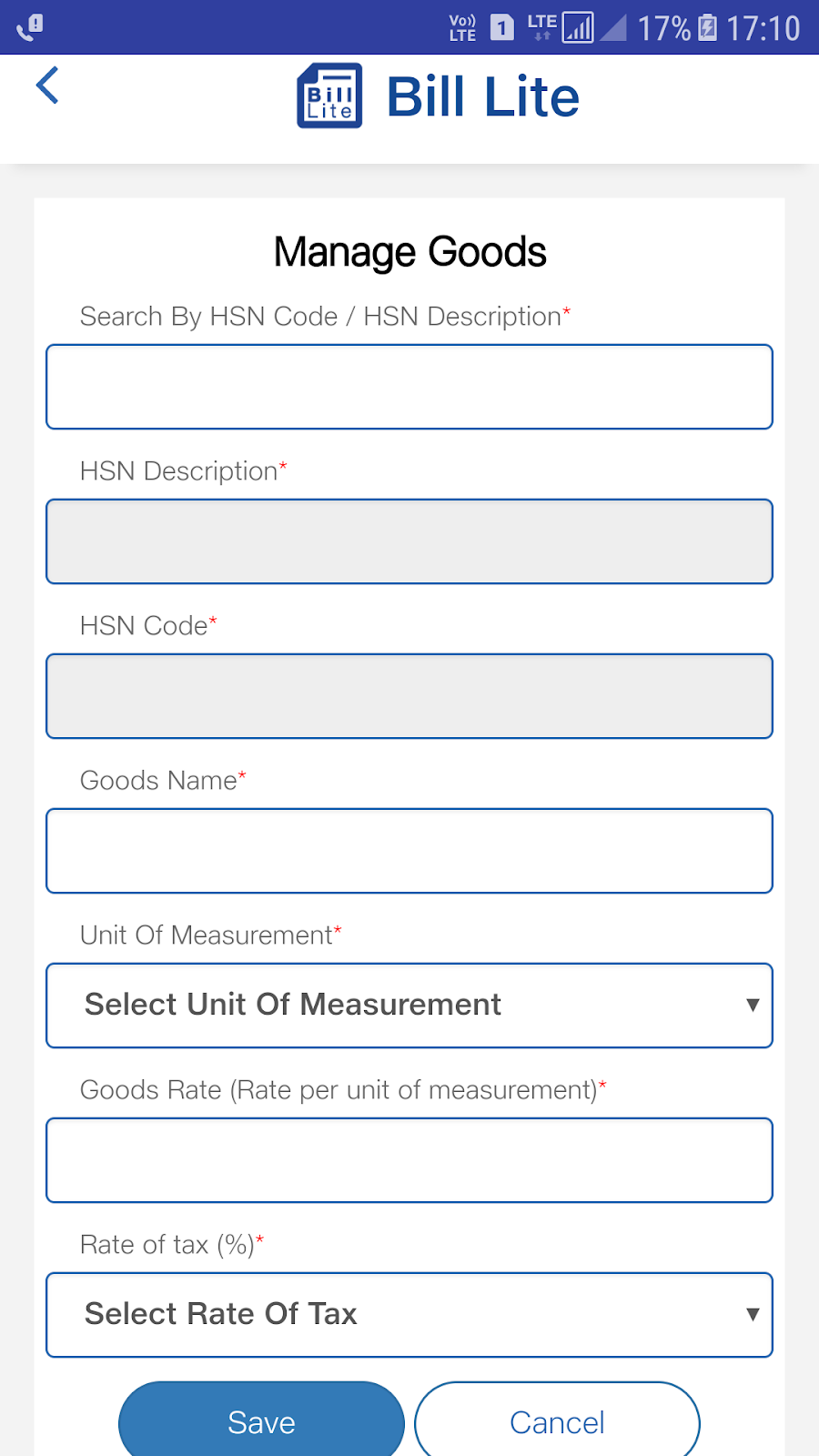
You will be taken to the 'Manage Goods' page.
Here to add goods, tap on the add icon at the bottom right corner of the screen.


On this page the below mentioned details needs to be filled:


1. Search by HSN code/HSN Description
You can search the goods either by its HSN code or HSN Description. Once you search a good all the related HSN code/ HSN description will be displayed.
Select the required Good from the options listed.


2. HSN Description, HSN code
HSN description and HSN code will be auto populated based on the selection made in 'Search by HSN code/HSN Description' field

3. Goods name
Enter a name for the Good

4. Unit of measurement
Select Unit of measurement from the dropdown.

5. Rate of Tax
Rate of tax will be auto populated based on the selection made in 'Search by HSN code/HSN Description' field. You can edit the tax rates.

Once all the details are filled, tap on 'Save' button. A confirmation message of 'Goods added successfully' will be displayed. Tap on OK button.


You will now be taken to the page where all the added Goods will be displayed. You have an option to Edit or Delete the added Good by tapping on the respective icons present on the right.


Similarly multiple goods can be added by clicking on the add icon at the bottom of the screen.

How to Download JioGST Bill Lite?

How to add & manage Services in the Service Master in JioGST Bill Lite

Creating and managing your Services Master in JioGST Bill Lite

To add a new Service, tap on 'Masters' tab on the Home page and then tap on 'Manage Service Catalogue'


You will be taken to the 'Manage Services' page
Here to add Services, tap on the add icon at the bottom right corner of the screen.


On this page the below mentioned details needs to be filled:


1. Search by SAC code / SAC Description
You can search the service either by its SAC code or SAC Description. Once you search a service all the related SAC code / SAC description will be displayed.
Select the required Service from the options listed.


2. SAC Description, SAC code
SAC description and SAC code will be auto populated based on the selection made in 'Search by SAC code/SAC Description' field

3. Services name
Enter a name for the Service

4. Unit of measurement
Select Unit of measurement from the dropdown.

5. Rate of Tax
Rate of tax will be auto populated based on the selection made in 'Search by SAC code / SAC Description' field. You can edit the tax rates.

Once all the details are filled, tap on 'Save' button. A confirmation message of 'Service added successfully' will be displayed. Tap on OK button.


You will now be taken to the page where all the added Services will be displayed. You have an option to Edit or Delete the added Service by tapping on the respective icons present on the right.


Similarly multiple Services can be added by clicking on the add icon at the bottom of the screen.

How to Download JioGST Bill Lite?